Introduction
New technologies are used in many courses and for many occasions. Good teachers try to use the best tool and the best method to introduce or to treat difficult subjects by presenting the information in different ways: spoken words, written text, pictures, graphs, movies or by using interactive computer tools. It is a fact that students who discover the solution to a problem by themselves, for instance by searching information on the Web or by using a multimedia computer tool, understand and memorize the learnt subject matter better than if they simply listen to or read the information. In this sense, computer-aided learning, or e-learning, seems to become a more important and useful part in education.
In this article we present our intelligent e-learning tool that understands students’ questions. First, we introduce our view of the advantages and disadvantages of e-learning and our vision of a perfect educational tool. Second, we present our solution CHESt, the Computer History Expert System, with its multimedia interface, the idea of splitting the knowledge in a large number of small clips and its semantic search engine. Then, we describe how the knowledge base is semantically described with RDF, the Resource Description Framework, by building a reservoir of CHESt vocabulary and by generating the CHESt dictionary and the RDF serialization. We also present briefly some technical details about the semantic search engine. Finally, ideas for future and related work are presented in the last section.
Historical View
The e-learning vogue started in the mid 1980s as a promising application of new technologies and inventions like the compact disc (CD), the personal computer (PC) and better graphic adapters and displays (for example: CGA, Color Graphics Adapter). Soon, it was said that these novel computer tools would replace teachers, especially when several years later, the first online lessons were broadcast via the Internet. It is true that from those early visions, several real advantages for everyday education were born. Here are some examples:
For the student:
The multimedia aspect and the attractive interfaces attract the student’s attention.
Courses are broadcast live or on demand over the Internet. Thus, students can review a missed lesson or an important topic before a test.
For the teacher:
The teacher has the possibility to promote autonomous learning.
Distant learning is possible without displacement (for teachers and even students).
Pitfalls in E-learning
However, many e-learning tools and solutions are the results of theoretical and scientific research rather than of practical, concrete, and founded needs in education. Consider the following two examples:
A multimedia encyclopedia is a great tool for teachers to find information for preparing their courses. But students can only use few immediately. The information is often presented in a too-complicated language and there is simply too much information on one topic. There are no filter techniques to adapt the content to the skills of the user (for example: less information for a student, exhaustive information for a teacher). Often, search mechanisms are based on simple keyword searches that are not effective; for example, the user gets a large number of possible results.
Many universities offer courses online, often streamed from a server. We will not discuss any performance or financial constraints; each lesson that has to be transmitted normally takes over an hour. Well, let us suppose that the student has to take into account a dozen of such lessons for a test. Even if he or she is searching for precise information, it is difficult and very time consuming to scan through all the possible streams to find the appropriate part.
Based on our teaching experience, we perceive the e-learning technologies as a complement to classical education and useful for special occasions. We do not agree that computer programs should become an equivalent substitution for teachers or classical methods. Students should primarily use e-learning tools at home, for example to review a certain difficult topic, to receive advanced or simplified information about a certain subject or to help them doing their homework. Otherwise, the abuse of computers and e-learning tools in classrooms will provide students with the misleading view that everything is so simple that it can be learned by playing. As already mentioned above, an occasion where an e-learning tool is pertinent and useful in school is when a new topic is introduced. Here, the teacher may decide to let the students discover this new topic by themselves in order to attract their interest.
A computer tool cannot explain a difficult topic better than a teacher can. It can only present the information in another form, maybe a clearer or more exhaustive one. But it can neither understand the student’s real problem nor provide further and different explanations adapted to the student’s sense of perception.
Furthermore, the interaction between machines and humans is still surprisingly complicated. Students often have problems to express themselves. Formulating their problem in a computer-understandable form seems not to simplify the problem. Clicking on some icons on the screen is certainly very simple, but doesn’t allow the users to express themselves freely.
In direct consequence to the above-mentioned problems, the heavy use of computer tools in education is more time consuming than classical methods. For example, because Web-based search engines work with keywords, the resulting list of Websites is often very long and most entries are not really pertinent. Therefore, the student spends most of the time surfing on the Web searching for information but without clear and precise results at the end and without acquiring new knowledge about the initial subject. Furthermore, most students are slow in typing text or in correctly manipulating specific software. Thus, if they had to use conventional tools like books to search for information, they would have found the answer to their question faster than with a computer tool.
Our Vision
Our vision is to create an e-learning tool that should understand students’ questions. The interaction with that tool should be as human as possible, maybe even by means of spoken words. The user should be able to freely formulate his or her question. The system understands his question and returns a precise answer in multimedia form. Here are some key features of our novel e-learning solution:
The tool can be used as a complement to normal courses (in the classroom or at home).
It does not require special hardware and can be used on any computer.
No installing or configuration procedures are necessary.
The answers are in a multimedia form.
The answers are taken from a secure knowledge base.
The knowledge base can be extended easily.
The tool promotes independent learning.
The student creates his or her own course content by assembling different multimedia answers.
The interaction between the user and the system is very easy.
The search for information is not limited to a simple keyword search.
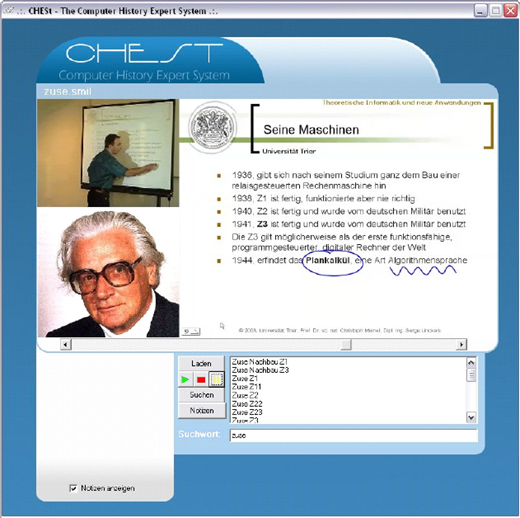
On the basis of the overwhelming experiences of using Tele-TASK (Chen, Ma, Meinel, & Schillings, 2004; Ma, Schillings, Chen, & Meinel, 2004; Meinel & Schillings, 2002; Meinel, Schillings, & Walser, 2003) in university teaching, we started to investigate whether it can be used in (high) schools as well. Our research project started in 2003 in close collaboration with teachers, who tested our prototype in practice. Recent results and ideas were published in Linckels and Meinel (2005). We focused on one general context, namely computer history. The aim of project CHESt is to design an e-learning tool for computer history that allows pupils to easily find information by means of asking questions (see Figure 1). The prototype is based on the following features:
Within CHESt, the knowledge is presented in multimedia form.
The content of the knowledge base is split into a large number of small clips.
A semantic search mechanism is used for information retrieval.
The Multimedia Interface
Today, kids are spoiled with all the wonderful and attractive interfaces of operating systems, applications, and games. New software without a graphical user interface in vogue is doomed to failure. That’s exactly why students prefer Websites with colors, images, sound, and animations, rather than books as learning syllabuses. In fact, isn’t it clearer and easier to read something that is illustrated with images, pictures, or drawings? Every person is different in his or her sense of perception. Some understand better if they hear the explanation by means of verbal communication, some need to write it down, others must see it in the form of text or a picture, and others again have to touch it. A good teaching tool must present the same information in different forms in order to activate as many senses as possible. The psychological foundations were proven by the work of Mayer, Gallini, and Sims (Mayer & Gallini, 1994; Mayer & Sims, 1994); information that is presented at the same time in different forms improves the understanding of the information.
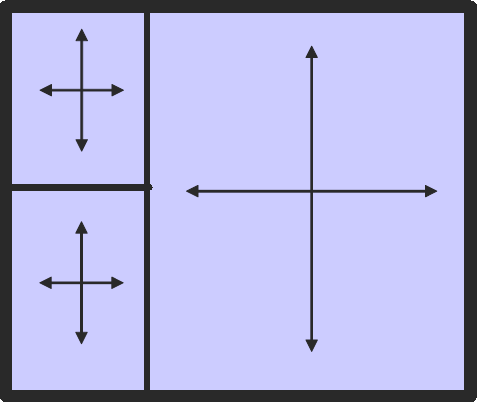
The interface of our tool is basically organized in three windows (see Figure 2). The first window (video and audio) shows a teacher explaining something on the whiteboard. This is the student’s common view in a classroom and should create a kind of virtual classroom atmosphere. Based on practical teaching experience we can confirm that students often take lessons where they use a new computer tool or do research on the Web; for example, as a kind of game, without relation to the normal lessons. The video sequence should keep them concentrated on what they do and draw their attention to what the teacher is explaining.
The second window represents the usual blackboard. It is, in fact, a zoom on the whiteboard that the teacher uses in the video (first window). Although the blackboard is the most used medium in schools, it has many disadvantages, such as:
It is impossible to represent pictures.
It is difficult and time-consuming for the teacher to create a complex drawing.
It is time-consuming for students to reproduce its content in their books.
The content is not available for later lessons and must be reproduced.
The virtual blackboard in our tool has the following features:
The teacher can use this area for an on-screen presentation (for example, PowerPoint).
The teacher can add handwritten information to the smartboard, which is reproduced in this window both simultaneously and in exactly the same way.
The teacher can also display the desktop of his or her connected laptop in order to explain a certain application, to show a Website, or to demonstrate the settings of the computer, and so on.
The third window can be used for any purpose. It can contain links to a photo gallery, hyperlinks to additional information on the Web, book references or just a single picture of the subject about which the teacher is speaking.
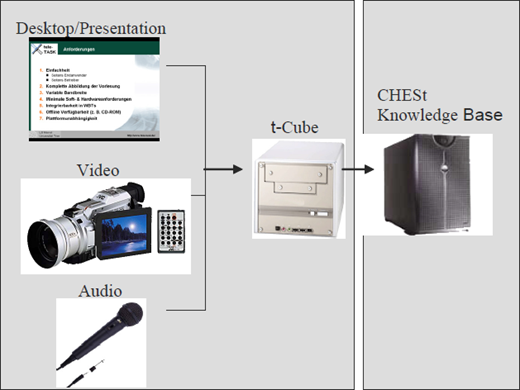
We used Tele-TASK (Chen et al., 2004; Ma et al., 2004; Meinel & Schillings, 2002; Meinel et al., 2003) to record the lessons in order to create one well-structured multimedia stream (see Figure 3). The result is a RealMedia file that can be played with any compatible software, such as the free RealOne Player (http://www.real.com/).
The Clip Approach
Essential in our concept is the length of the stored items in the knowledge base; the duration of the video sequences. The younger the user, the shorter the time during which he or she will concentrate on the information displayed on the screen. Furthermore, we mentioned already in the introduction that it is not easy to find the appropriate information inside a large piece of data, such as an online lesson that lasts 90 minutes. Therefore, we divided all our multimedia data into small clips. The duration of each clip varies from several seconds to 3 to 4 minutes. Each clip documents one subject or a part of a subject. Together, all the clips of the knowledge base cover one large topic. In our prototype CHESt, we focused on one precise topic: computer history. We produced 300 clips about every important event in computer history. CHESt exists as standalone application (we managed to store the whole knowledge base with the application software on a single CD-ROM) and as online application. The latter uses a streaming server to transmit the clips to the user’s browser.
Splitting a large topic like computer history into many small pieces is much easier than we assumed at the beginning. We are now convinced that most courses taught in schools or at universities can be divided into smaller atomic units in which each covers one precise subject. Teachers of different fields confirmed that this concept is not limited to computer science and that it could be used in their field too. For instance, in language courses, a teacher could record one clip per grammatical rule. Another concrete test was made in the field of biology, in which a teacher used our tool to explain the basic function of the heart. Further details would be explained in additional clips.
One more advantage of that clip approach is the simplicity of administration. If the tool does not cover a certain topic, a new clip can be recorded and added to the knowledge base. The intervention of a computer science expert is not necessary.
Finding the Right Clip
Having a large knowledge base with short multimedia clips is one thing; another thing is to find the right clip. The more clips you have, the better your knowledge base covers a certain topic, but the more difficult it is to find an appropriate clip. A first solution is of course to let the user browse through a table of contents in which all the clips are listed in categories, such as hardware/storage devices or people/still living, and so forth, and load the chosen clip. This possibility is offered in the standalone version of our tool, not in the online version for the moment. The main disadvantage is that there is no additional information about the content of the clip except for a short designation. Furthermore, this operation is time-consuming and not very effective, because the user has to search and maybe test different clips before finding the answer. An automated search would be better. At the moment, the prototype CHESt has only a keyword search. If the user enters “arpa,” the system will list all clips about the ARPA and the ARPANET. The user then selects a clip from that list to be played. The main disadvantage is that the user must already give a part of the answer. For example, if you want to know who invented the first computer, you should enter keywords like “Zuse” or “Aiken.” You cannot ask, “Who invented the computer?” Another problem is that, depending on the keyword, you will get a long list of possible results. Finally, even if a clip is about a certain topic, it must not necessarily be found from the keyword the user has entered; for example, the user enters “disk,” but the matching keyword would be “floppy.”
The most efficient search mechanism is to allow the user to enter a complete question. The tool should understand that question and give a small list of pertinent clips as answer or, even better, just one clip. Technical details about our semantic search engine are described in the next sections. This solution is also pedagogically welcomed because, in schools, students are forced to express themselves in complete sentences and not just with keywords. Most important is the fact that the interaction between the student and the tool takes place in a very human and simple way. An imaginable improvement would be a verbal communication in which the user could speak his question into a microphone.
Example of an All-day Application of CHESt
With the features described bellow, we could imagine that the student who is working with CHESt has his or her own virtual teacher. These teacher’s answers are short and presented in an interesting multimedia form. The student can communicate with him or her in a very simple and human way by typing his question, or in a later improved version by means of verbal communication. Although CHESt will not replace every conventional lesson, we see it as a complement useful for certain occasions. It’s up to the real teacher to decide for which lessons it is appropriate, such as:
To introduce a new subject by letting the students discover new information for themselves.
To use CHESt as a complement to find illustrations for a certain topic (for examples pictures of old computers or computer pioneers).
The students could work in groups or alone. In fact, they create their own course content: the clips they consult. Depending on the kind of work, they can print a certain scene of a clip, copy snapshots into a text document or simply take notes. The teacher is sure that the information they get is correct and secure. Here a concrete scenario: “Hi students. Today we are working on computer history. Here is a list of interesting questions. You have 40 minutes to search for information before we discuss your answers together. Of course, use CHESt!”
Who invented the computer? When?
What is the Colossus?
What is a transistor useful for?
Explain the word FTP.
Who sent the first e-mail?
What was the size of the first hard disk?
Who invented UNIX?
Describing the Meaning of the Clips
In the previous sections we described our prototype CHESt from a pedagogical view. The search of a certain clip, not by keywords, but by a freely formulated question, is one of the main necessary improvements. However, before the tool can even try to understand the user’s question, it has to know what data are stored in the knowledge base. In other words, every clip must be described in a machine-readable form. Therefore, we have to add data to each clip to describe its meaning. Those kinds of data are called metadata. For this purpose we use the Resource Description Framework (RDF), introduced by the W3C in 1998 to build the Semantic Web (http://www.w3.org/RDF/). In principle, this is done once, at the moment when the clip is added to the knowledge base. However, the computer can assume a part of this task. The different steps are described below.
The CHESt RDF Vocabulary
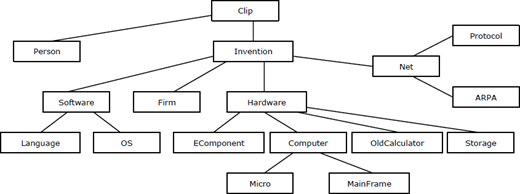
With our concept of using short clips, we have the great advantage that we can describe the meaning of one clip with few metadata. We divided the CHESt knowledge base logically into two classes: clips that describe inventions (things) and clips that describe inventors (persons). Assertion: an invention was invented by one or more inventors. An invention and an inventor can be a resource (in our case: a clip) or a value (just textual information). Every resource is described with properties. An inventor has three properties (predicates): name (vCard:FN), year of birth (chest: year_birth) and year of death (chest:year_death); if still alive, this property is left blank. As can be seen, we used the W3C recommendation vCard namespace property “full name” (FN) (http:// www.w3.org/TR/2001/NOTE-vcard-rdf-20010222/). The class invention is divided into a number of subclasses to better organize the different resources (see Figure 4). We used the “Dublin Core” (dc) namespace (http://dublincore.org) to describe an invention with the following properties (predicates): its description (dc:title), its date of first appearance (dc:date) and its creator (dc:creator). The complete CHESt RDF schema can be found at http://www.linckels.lu/chest/elements/1.1/. With these few elements we can semantically describe every clip.
Generating the CHESt Dictionary
The next step is to search inside every clip for metadata. For example, the clip that describes the calculator “ENIAC” should be scanned to find its description, the year it was first taken into service, and the name(s) of its creator(s). We tried to apply an approved approach in the field of computational linguistics: create a dictionary of synonyms for every CHESt RDF element (Carstensen et al., 2001; Manning & Schütze, 2003); in one column one will find the RDF elements and in the other column there is a list of natural language synonyms. For example, if we are scanning for dc:creator, we are searching for words like creator, builder, constructor, inventor, and so forth. For our prototype, we decided to consider only the textual data from the PowerPoint presentations and to ignore the teacher’s audio information and his handwritten notes for example. With a special tool (Linckels, 2003) we are able to convert the PowerPoint documents into pure text files. Then the stemming process can begin. All non-words (words that contain digits or special characters) and words with just one letter were eliminated from the generated text files because they have no semantic influence. All words are converted into lowercase and special characters are replaced by a space. Finally, a list of 20,640 remaining words was created from all 300 clips in the knowledge base. All were represented in a tree, in which every node represents one letter. The tree is built in less than a second. The words are read vertically from the top (root) down along the branches. This technique also eliminates all double words. Each node contains the number of words that end with that particular letter. There are 4,215 remaining unique words with an average length of 8.049 letters per word.
The dictionary of synonyms is built from that tree. The idea is to regroup words with similar spelling and thus with the same meaning (for example: build, built, builds). It is impossible to detect automatically all synonyms, because there are words that have a similar spelling, but not the same meaning (for example: consult, consume). The aim of the stemming process is to limit human intervention by proposing clusters of generated synonyms.
Why didn’t we use an existing dictionary of synonyms, for example WordNet (http://www.cogsci.princeton.edu/~wn/)? For two reasons: first, by choosing an existing dictionary, CHESt would immediately be set to a certain language (English, German, French, etc.). Our solution is language independent, because it builds its dictionary from an existing content. Second, even if we still have 4,215 unique words to scan for synonyms and RDF elements, it is still much less than a complete dictionary with at least 200 times more words. Note, also, that the words listed in our dictionary are words that are used at least one time.
Generating the RDF Description
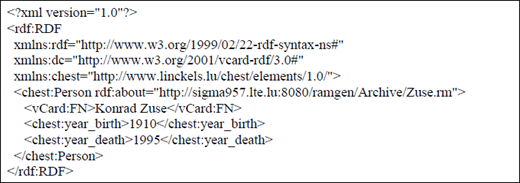
The final step consists of scanning through the clips (as text files) and searching for synonyms for the RDF elements (see previous section). In our case, 273 of the 300 clips were described automatically and without human interaction. In some clips, different concurrent synonyms were found. The most frequent example is the RDF synonym for dc:date, which represents the date of first public appearance of an invention. For different inventions, there was a date of planning, a date of starting the construction, and a date of launch. To solve this ambiguous problem, we programmed our tool so that, in case of concurrence, it chooses the second occurrence and protocols the problem in a log file. The final result is an RDF/XML serialization for each clip (see Figure 5). We used Jena (http://www.hpl.hp.com/semweb/) to generate the RDF serialization. Jena allows storage of the RDF metadata in a simple XML file, but it also supports several RDMS (for example, MySQL or Postgre-SQL).
Understanding the User
The number of results (in CHESt a matching result is a clip) will be shorter and more pertinent with a semantic search than with a normal keyword search. Furthermore, the user must not enter a part of the answer in its question; for example, “Who invented the first computer” doesn’t contain the name of the inventor. In fact, the name of the inventor is the information to find.
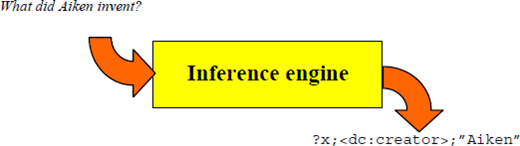
We now dispose of a well-formulated and semantically described knowledge base in RDF. To perform a semantic search, the question entered by the user must be transformed into RDF too, in order to have the same structure for the question and for the database (see Figure 6). The backbone of our semantic search is an inference engine which transforms a normal sentence (the user’s question) into a well-formulated RDF query. We used RDQL (Miller, Seaborne, & Reggiori, 2002) to access our RDF knowledge base. Further details of this process are described in Linckels and Meinel (2005). For example: “What did Aiken invent?” should become:
select ?x WHERE (?x;<dc:creator>;“Aiken”)..
As described in the previous section, all the words in the dictionary are basically regrouped in two categories: words that are of semantic use (which are associated with an RDF element) and words without semantic use (which are not associated with an RDF element). It is clear that this dictionary can only be used in a precise context, which is computer history in our case. The user’s question is also put in that same context for parsing; for example, if the users ask “Who invented penicillin?” the tool cannot give an answer because the question is outside the tool’s context. Starting with these constraints, the transformation of a common formulated sentence into RDF can be resumed by saying that the system has to replace all semantically important words by the RDF corresponding elements and to throw unimportant words away. Of course, the shorter the questions, the better the results.
Since all RDF elements in the CHESt schema are defined either as {subject, object} or as {predicate} (see previous section), there is no doubt about the membership of the recognized RDF elements. Except chest:Person and chest:Invention (or one of its subclasses), all RDF elements are predicates. As we are dealing with questions, there should always be a missing part, normally the subject or the object. Remember the basic assertion: “An invention was invented by an inventor.” Generally, members of the class chest:Person are objects, members of the class chest:Invention are subjects.
Conclusion and Outlook
Our primary aim is to create a tool or even a new method of teaching. The teacher is in the background and the student plays the role of an explorer. Therefore, it motivates the student because he or she can create his or her own course content. The information is presented in an interesting multimedia form. The system understands the questions of the user and gives efficient answers: there are no long searches for answers, but the requested answers are rendered in a concise form. Of course, a motivated student is a good student, and good students normally achieve better results. Thus, this tool is supposed to improve education.
The prototype CHESt covers the field of computer history, but by generalizing the knowledge base, it can be used in nearly every course in any school, college, or university. Its advantages are that it promotes independent learning. By adding clips from other fields (such as biology, electronics, etc.), CHESt could become more than just an expert system on computer history. Ideas are to use external and existing resources of information, rather than to record new clips for each subject. Another idea is to test how a RDF vocabulary can be associated automatically with an existing dictionary.
CHESt was tested at the Lycée Technique d’Esch/Alzette, a technical school in Luxembourg, at the beginning of 2005. Complete test results were published in Linckels and Meinel (in press). These experiments confirmed that CHESt is an effective e-learning tool that can be used as a complement to traditional courses. The presentation of knowledge in the form of short multimedia clips, and the fast respond time were strongly appreciated by the students. However, we learned that our search engine must be improved in several ways. Current research aims to use linguistic preprocessing of the user’s question in order to extract more semantic information. We also understood that it is not an easy task to use search engines as a didactical tool in schools. Users need training and domain knowledge before they are able to successfully use search engines for that topic. Finally, it seems that specific search engines must be developed for specific purposes: usage in school, specific domains, specific user groups, etc.