Introduction
The spring of 2020 presented many new challenges for people across the world. In a matter of days, individuals’ lives were suddenly and drastically changed in ways they had never before experienced. Businesses and universities were forced to close or go exclusively online, students and educators had to transition to online learning, and professionals had to adjust to innovative trends and technologies to continue in their line of work. Furthermore, educators faced the challenge of meeting professional development requirements, a necessary component of the profession often met through presentations or attendance at local, national, and international conferences. Continuing education provides opportunities for professionals to stay current in their field and keep up with the latest research, trends, and innovations. Here are images from our first virtual conference (Borror & Ransdell, 2020). Figure 1 shows the entry screen for our session, and Figure 2 is link to begin the presentation. The move to virtual makes the visual even more primary to comprehension and interest.

Associate Professor, Nova Southeastern University, Fischler College of Education, 3301 College Ave, Ft. Lauderdale, FL 33314.
Associate Professor, Nova Southeastern University, Fischler College of Education, 3301 College Ave, Ft. Lauderdale, FL 33314.

Professor, Nova Southeastern University, Dr. Pallavi Patel College of Health Care Sciences, 3301 College Ave, Ft. Lauderdale, FL 33314.
Professor, Nova Southeastern University, Dr. Pallavi Patel College of Health Care Sciences, 3301 College Ave, Ft. Lauderdale, FL 33314.
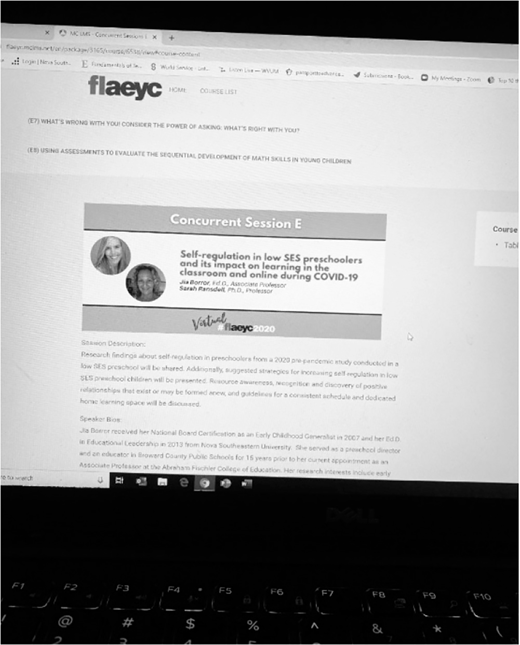
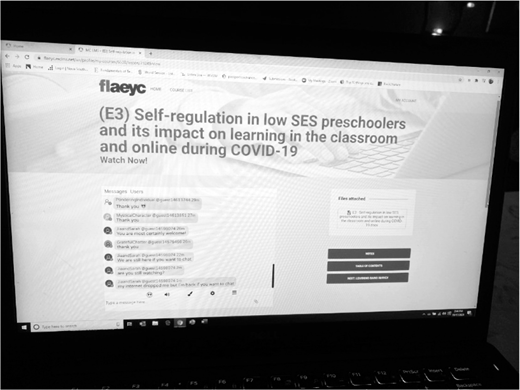
As professors at a small, private, not-for-profit university in South Florida, we found our research suddenly halted in the middle of a study due to school closures related to the coronavirus pandemic. The research study was not as extensive as it was originally intended, but enough data had been collected to publish in a journal (Borror et al., 2020) and present at a state conference (Borror & Ransdell, 2020). The format of the conference was changed from in-person to virtual, following state guidelines to keep citizens safe from infection. The transition to a virtual conference format required the knowledge and application of new tools and technologies, some of which had not been previously used by the professors. In this article, we share our insight and perspectives related to the transition to online learning, as well as virtual conference preparation and presentation. Two student research assistants involved in the study with the professors also share their perspectives and experience with some of the applications while transitioning to online learning. As the visual media is so important to the online environment, we provide three appendices that show our first virtual conference slide, a sample virtual conference chat, and a handout we used to improve conference connection. Next, we provide the words of two students about the software tools and transitions required to succeed.


After being notified that our conference presentation was accepted in the Fall of 2020, we immediately began to plan and organize the information we wanted to share related to our early childhood research study that was cut short due to the pandemic. Because Zoom was a platform used on a regular basis at our university, collaborative planning meetings were scheduled to carry out this task. Following individual preparation and several Zoom meetings, the conference material was finalized. Because the virtual conference format required that the presentation be prerecorded and submitted several weeks before the actual conference date, we made arrangements to record our presentation at the same physical location. A PowerPoint was used a guide to keep us on track and ensure all of the information we wanted to discuss was included. (See also first slide in Appendix A). Being on camera for 45 minutes without audience interaction was challenging, but we appreciated the opportunity to present at a state conference from the comfort of a safe home environment during the pandemic. After the recording was complete, we emailed a link to the conference organizer who then set up the various conference presentations and virtual rooms on the day of the conference. Participants had a choice as to which presentations they wanted to attend, and presenters were required to log in and be present during the prerecorded sessions. Presenters were encouraged to welcome participants as they entered the different virtual conference presentations and remain until the end to answer any questions related to the content. An example of our chat transcript during the presentation by attendees at the conference is included in Appendix B. We encouraged chat as much as we could. Appendix C provides an example of our virtual conference handout to assist connection with active links. We tried to extend useful links we found to make our points clearer. Both examples were informed by our need to connect online as best we could (Ransdell & Rieck, in press).
Other virtual conference tools that were employed during the conference were Microsoft Teams, Google Forms, Member-Clicks, Minnit Chat, and Wheel of Names. Both professors had previously used Microsoft Teams and Google Forms in various capacities, as Microsoft Teams is a platform used at the professors’ institution that provides videoconferencing capability and options to collaborate and message other group members within a team. Additionally, Google Forms is a helpful tool that allows multiple faculty members to work collaboratively and add information to online documents and presentations from different locations.
We had limited use or knowledge of the other technologies used by the conference organizers, which included MemberClicks, Minnit Chat, and Wheel of Names. Because they may be helpful tools to use in online learning platforms, presentations, and meetings, we will explore them in more depth. Now more than ever, it is important to learn about all of the tools and technologies at our fingertips that can help to increase connection and engagement in a virtual environment. Next, our two undergraduate research assistants share their insight and experience with these applications from a student perspective.
Here is a sample of student JB’s comments about Zoom.
As a college student during the COVID-19 pandemic, Zoom has become my lifeline. It is not my top choice of learning for my classes. If I had the option, I would prefer a traditional classroom setting. However, Zoom has been extremely beneficial due to the current circumstances. I appreciate how the program is very simple to use, and it has features such as sharing your screen, which is very convenient when professors are lecturing with a PowerPoint. I also like the breakout room feature that allows students to work on projects in small groups privately. This has been an application that I have used for all of my classes as well as extracurriculars. Currently, my sorority cannot all meet because there are over 100 members. Therefore, when we have our weekly meetings that had previously been held at my university’s auditorium, they are now on Zoom so that everyone can attend. Some of the controls on Zoom that we use during our meeting is that our cameras must be on to show that we are participating, and we must always stay muted unless speaking so that there is not background noise. Lastly, we use the raise-hand feature so that no one is talking over someone else while they are speaking. The fact that I spend almost every day of the week on Zoom shows how important it has become because of COVID-19. There are still some issues that come along with the program such as your computer freezing, lack of participation among participants, and a fear to speak because you may interrupt someone else who may want to talk. These are issues that cannot necessarily be fixed because people do not feel the same connection to their classes and extracurriculars from their home compared to the feeling of being present in the classroom and interacting with other classmates and the professor.
Here is a sample of student AF’s comments about Zoom.
Zoom is the most widespread video conferencing platform throughout my academic and professional career. Both my class meetings and work at the Writing Center strongly depend on the efficiency and ease of use of this platform. While I strongly prefer the desktop app rather than the web browser version, the web version has more features. To begin, the safety features have come a long way. The ease of enabling a waiting room, adding a welcome message to it, and even sending a private message only to the participants in the waiting room is very useful. I am able to multitask and efficiently move from one meeting to the next without feeling like a hacker may join and start screeching, which was in fact a problem at the beginning of the rollout. Scheduling future meetings pairs nicely with the app version because you can choose to view your upcoming meetings under “Meetings.” These scheduled meetings can notify you on the corner of your screen when someone enters the waiting room or remind you when a meeting is beginning shortly. Internet connectivity is very important. The share screen system can have a lag, especially when attempting to share video or audio clips. When someone is a host, they can best utilize the breakout room and raise hand features. These allow for interactions between meeting members. Interaction is a huge goal during the challenges the pandemic has provided. Breakout rooms, although wonky, allow for more close discussion between students. The raise hand feature also provides professionalism and allows the professor to call on students without worry of interrupting one another.
Student JB on Microsoft Teams:
As a college student during a pandemic, I have seen that Microsoft Teams is an organized way to work and communicate with a group of individuals in a professional manner. This is important because fewer meetings can occur face-to-face, so it is likely that projects will need more online communication than in the past. Microsoft Teams is best for professional projects because communication through text messaging or social media is less formal and it is easier for information to get lost. Some of the resources it includes is a chat feature for groups or just a one-on-one discussion. It also includes a place to view all the teams you may be a part of to keep the groups separate and organized. A personal calendar is available that will show important dates and assignments for all the teams the participant is a part of. With all the features that MicrosoftTeams has to offer, there is an assignments tab where teachers can post assignments for their students. Teachers can keep track of their students’ progress as well as easily access assignments students have completed. It keeps everything the teacher may need on one platform, which is very useful because students in a class can view course materials and assignments and submit them when complete. Like most new programs, students may need a little instruction and guidance to use it effectively.
Student AF on Microsoft Teams:
Microsoft Teams is a software designed for collaboration whether it be between students, teachers, or other faculty. The main goal is to maintain connection and organization. Comparable to Zoom, Microsoft Teams has chat features, screen sharing, virtual background changes, and video calling. The chat can be used either for one-on-one conversation or group conversation. Microsoft Teams is free to sign up for, but many colleges have paid for their students to have full access to Microsoft 365, which includes Teams. You can opt-in for notifications relating to collaboration, reminders for upcoming meetings, and even connect to your Microsoft calendar. Linking your calendar would automatically add your meeting times to it. Additionally, you can set your meeting availability for others to view. For those with minimal experience using Microsoft Teams, there are free resources to learn the software. These features include training videos, meetings with instructors, and a blog answering frequently asked questions. These options are available to all users.
JB on Google Forms:
As a college student during a pandemic, Google Forms has been helpful. I was using Google Forms regularly even before the pandemic. This is a convenient application because it is extremely easy to use. Most people have Gmail accounts, so it is easy to share the Google Form with another account. The best way to use Google Forms is if you have an assignment where you need to survey other people’s opinions on a certain topic. I frequently use Google Forms when I work with a group of people, and we need to coordinate a time to meet up, and this is a way to compare everyone in the groups’ schedule in a neat and organized way. Lastly, it could also be used as a way for teachers to get feedback from the students to see what they liked about the class or things they may want to change. The way that the Google Forms application is set up is with a top header, which gives the creator the chance to explain the purpose of the form. Then it gives the option to ask for the person who is filling out the form to put their name down or to keep the form anonymous if they choose. The creator can make all questions required to be filled out with an option of short answer, long answer, or multiple choice. With all those options, the possibilities are endless. An issue that I have experienced with Google Forms is mainly user error because when setting the form, you must make sure that anyone with the link can view it or else it will tell the person who is trying to open the form that they need to request access to the form.”
AF on Google Forms:
Google Forms is a survey platform I have used for years in both my coursework and extracurriculars. The convenience, cost effectiveness, and organization of the software is why I prefer it over most others. They have multiple choice, dropdown, check boxes, short answer, long answer, linear scales, dates, and more. These options allow for answer responses to be easily input and simple to compile. Google Forms has a feature that allows the responses to be converted into a spreadsheet. Across the horizontal axis there is a time stamp and the questions asked. Each response will be formatted and automatically added once you convert the responses the first time. Additionally, the sheet allows you to format.For example, you can list your responses in alphabetical order by name (if that was a question you asked) or in chronological order based on when the form was completed. The responses can be viewed without creating a sheet. Creators may flip through individual responses or review a summary including helpful pie charts or bar graphs depending on the question. There is a security option to prompt users to log in with their Gmail before completing the survey to trace their answers back to them. I do not find this feature very necessary or convenient. If someone does not have a Gmail, they are unable to complete the form. I’d rather make each question required in order for users to write their name and fill out all responses. Creating the survey itself is very easy. There are customizable backgrounds (by color or you can upload your own). With one click you can duplicate questions or drag and drop to change the order. You can also add a title and short description at the very beginning to include any disclaimers or important directions.
JB on MemberClicks:
MemberClicks is a software program that is used for bigger organizations. This company has 20 years of industry experience, 3,000 customers in North America, and 100 plus employees in a total of three different offices. MemberClicks offers many beneficial services to several different departments within organizations. They offer many unique services with pricing determined based on the needs of your company. Some of the organizations they work with are Professional Associations to help with automated invoices and payment collection, as well as Trade Associations to increase member companies, save time, and generate revenue. Chambers of Commerce use Member-Clicks to create relationships, increase memberships, save time, and boost revenue. Association Management Companies enhance organizational excellence and efficiency with this program, and colleges and universities are able to spread news of alumni events and educational seminars.”
AF on MemberClicks:
MemberClicks is a collaboration software designed to bring employees and colleagues together as well as connect companies to their consumers. This software measures activity on a website for businesses to cater to their audience. The main functionality that appeals to colleges and universities is the ability to stay connected to alumni. MemberClicks does provide extensive training and supplemental video should someone decide to take the leap and spend the minimal $2,000 investment to get started. The main attributes of this site are email, member engagement, learning, website, job board, and events. The MemberClicks website provides the option to request a free demo for those who may be interested in learning more about this resource.
JB on Minnit Chat:
Minnit Chat is a relatively new program that has been in service for about three years. This program is focused on chatting with others to host an event, to boost engagement in a classroom, or just an easy way to communicate. This program provides a way to attach a chatroom to things such as a livestream, blog posts, or it can float on your page while you scroll the web. This program can also be customized with things such as backgrounds, changing the color scheme, allowing users to change text colors, or create nicknames. Minnit Chat seems like a relatively easy to use program, and it has safety features to protect users. These safety features include banning and kicking out other users, password protection for your chat, automatically banning users who use profanity, and it can disallow external links and uploads. This program can be used at zero cost but only for up to 40 people online. Messages are stored for 14 days and file uploads allow for 1 GB a month. Users can decide to pay monthly for a basic, community, or pro plan. The plan offers more users and more messages based on the amount you pay per month.”
AF on Minnit Chat:
Minnit Chat is a chatroom service allowing for both one-on-one and group chat options. This resource is most commonly used to embed a chat feature into a website. One highlight would be the compatibility of this chat option with many types of custom-built websites. It appears to be relatively user-friendly, especially because of the aforementioned compatibility feature and versatility. These chats can be used on websites, side-by-side to video broadcasting or live stream services, or for an educator to take questions. Small chat groups, up to 40 people, are free to utilize. Larger chat rooms would require purchasing a premium service. The basic plan also comes with some security features such as a bot to moderate the messages being sent. The more expensive premium options come with the capacity to block VPN’s, require a CAPTCHA authorization system, or offer password protection. Minnit Chat would be especially useful to users that have already created a website. Teachers that are using a website for class would be able to contact their students via chat instead of email. Having both course content and chat features in one space may increase the likeliness that students will communicate because it is so convenient. A more unique trait that Minnit Chat has is the ability to add music to the chatroom. Users are able to share songs and listen all at once. There are also customizable features such as dark mode, color scheme options, background changes, text colors, and nicknames. One catch that I immediately noticed is that chats for the free plan only save for 14 days. This may be an issue if a teacher is using a chatroom for important announcements about an ongoing assignment.
JB on Wheel of Names:
As a college student during the pandemic, Wheel of Names has been a program used to increase engagement in my online courses. This is a program that can be used to randomly select an individual by spinning the wheel. Teachers or professors may use this program to try to get the whole class involved in a discussion without having to call on individuals during class. Wheel of Names is an easy-to-use application, and it is designed in a way that the user can customize almost every aspect of the wheel. Some of the options for creativity includes a feature that will allow the user to import images from a device. Another option that is customizable is the choice to add a confetti effect when the wheel has spun and landed on the winner. Other things that the user can control when designing their Wheel of Names is a feature that allows the user to add up to 1,000 names on the wheel at a time. Another feature is the ability to control how many seconds the wheel will spin for. Lastly, the sound the wheel makes while it is spinning can be changed. On top of everything that was already mentioned, the colors and the size of the font displayed on the wheel can be changed. Some issues with the program that I have seen in the classroom is that the user must have the wheel to auto remove the winner or else it will land on people that have already participated. However, this up to the teacher as to whether they want to leave the participants on the wheel to answer questions again in the future. It is also a program that can be sent to others easily because it has a shareable link. Overall, this is an excellent application because it is interactive for a group, the program is simple to use, and it can change the dynamic of an online classroom setting.
AF on Wheel of Names:
Wheel of Names is a wheel that randomly lands on a preassigned name in the wheel. All choices have an equal chance of being chosen. The spaces are red,green, blue, and yellow, and the font is large enough for most to see. When you spin the wheel, the selected name appears with a round of applause and confetti bursts. It’s a random generator to take pressure off calling participants’ names and brings bright colors into the curriculum. There is also a feature on this particular website that allows images to be uploaded if you want to add student photos. This tool is very easy to use. From a college student’s perspective, I would consider it more for younger groups, who may be excited to see a tool like this used in the classroom. There are multiple features that are easily customizable such as the spin time, ticking sound, and maximum options for the wheel. The default wheel has seven options but can include hundreds. There is a dark mode, which has become very popular within other websites and software. Additionally, someone could preassign their wheel settings and save them to easily return later. This adds to the convenience and allows for advanced planning, which saves time in the future. Finally, you may connect your Wheel of Names to a Google Spreadsheet. This will record the winners in a sheet on your Google Drive to return to at a later time. This is especially useful if the wheel is to be spun for class participation with points to be added later. For a virtual tool during the pandemic, it works well for young audiences.
From Wheel of Names to the ubiquitous Zoom, learning about the range of tools and technologies behind an engaging virtual conference presentation or classroom interaction is important. Undergraduates are digital natives who speak casually about the strengths and weaknesses of what they see, all the while wishing they were also in person for some learning. As professors, we must listen to them in their own words. These two students mostly agreed with each other and were willing to speak about the upside and downside of each tool as they saw it. The transition from in-person to virtual conference presentations and classroom learning has been eye-opening. Professors and students share many observations that must be taken into consideration during the teaching and learning process. Virtual life requires even more emphasis on visual power and creativity for comprehension and interest. A wide range of software must be learned and deployed with audience comfort and learning needs in mind. We can’t breathe the same air as the student or the conference goer during COVID-19, but we can adapt and learn the tools that allow us to be together, nonetheless. We can communicate with our students and our conference audiences, use the latest tools and technology well, and rest assured that we are making a transition that is important because it will likely never go back to the way it was before.
References

The first slide in our virtual conference presentation with attention to visual power and contrast.
The first slide in our virtual conference presentation with attention to visual power and contrast.
Appendix B
Chat sample from virtual conference as we try to get first time “chatters” to join us in the presentation
JiaandSarah @guest14598074 2h
Welcome to our session! Please let us know where you are joining us from.
Jia&Sarah
JiaandSarah @guest14598074 1h
We are here to answer any questions you may have before or after our session.
Also, please find our session handout attached. (smile)
GratefulChatter @guest14575456 1h
LaTonya Brinson from St. Petersburg
KindCivilian @guest14613659 1h
Mary Jones from Sarasota
EagerSelf @guest14578131 1h
Hello I’m Shrieka Hollis in Pinellas county.
JiaandSarah @guest14598074 1h
Hi LaTonya, Mary, and Shrieka! So glad you are with us today. (smile)
JiaandSarah @guest14598074 1h
If you haven’t already started the video, you can do so now.
PonderingIndividual @guest14613744 1h
Hello Linda Townsend from Clearwater
Nancy Spring @guest14596273 1h
Nancy Spring, Rclub Special Services, project challenge program, St. Petersburg, FL
JiaandSarah @guest14598074 1h
Welcome Linda and Nancy!
Juelie Perry @guest14569439 1h
Hello everyone. Happy Saturday.
JiaandSarah @guest14598074 1h
Happy Saturday everyone!!
JiaandSarah @guest14598074 1h
Juelie-where are you from?
JiaandSarah @guest14598074 39m
When you finish your own video play, you can chat with us.
PopularCreation @guest14577622 34m
HELLO from MUKTA sharma
JiaandSarah @guest14598074 34m
Hi, Thank you so much for joining us today!
JiaandSarah @guest14598074 33m
These are unprecedented times and we want to do our best to support the children in our care.
JiaandSarah @guest14598074 33m
Enjoy the rest of the conference and have a wonderful weekend everyone!
PonderingIndividual @guest14613744 33m
Thank you (smile)
MysticalCharacter @guest14613851 31m
Thank you
JiaandSarah @guest14598074 30m
You are most certainly welcome!
GratefulChatter @guest14575456 30m
thank you
JiaandSarah @guest14598074 26m
We are still here if you want to chat
JiaandSarah @guest14598074 5m
are you still watching?
…
JiaandSarah @guest14598074 5m
are you still watching?
JiaandSarah @guest14598074 4m
my internet dropped me but I’m back if you want to chat
Appendix C
Virtual conference handout where we provide concrete examples with links to applications
FLAEYC 2020
Borror and Ransdell
Jb239@nova.edu and ransdell@nova.edu
Aprs and Websites for Preschoolers
Libby App (by OverDrive)
free ebooks and audio books from public libraries
picture books with read along audio for preschoolers
Khan Academy Kids App (Ages 2–7)— reading, writing, math, social learning activities
National Geographic Kids (https://kids.nationalgeographic.com/)—educational games, videos, and other activities featuring animals & the natural world
Touchable Earth (http://www.touchableearth.org)—children learn directly from other children about different countries through videos, photos & maps
www.education.com—free games, activities, songs, stories & downloads for pre-K–5th grade by subject, topic, or standard
DIY at https://diy.org/—children’s creative projects with step-by-step videos (ex: how to make slime, building with Legos, cooking
ABCya at https://www.abcya.com/grades/prek—preschool educational games for preschoolers
EPIC! books and videos at https://www.getepic.com/—books children love to read on all topics (free to educators; free 30-day access for parents)
For daily schedules
Timo Kids Routine Timer—morning to evening daily routine; visual timer; build habits
Visual Schedules Lite—visual schedule board to reduce anxiety
Visual Daily Schedule—define daily schedule & tasks for the day, icon symbols for tasks, mark tasks complete, task timer
Kids ToDo List—Picture card scheduler; add pictures & voice recording; rewards for completing tasks (stars, fish, etc.)
Timer Countdowns
Visual Countdown Timer—timer for getting dressed, school-related tasks, breaks; adjust time by add/subtract time if needed; picture revealed at end of countdown
Timer Countdown for Kids by Idea4e— set timer for tasks/chores and favorite animal picture is slowly revealed; music themes
Meditation and Calming Apps
Smiling Mind—mindfulness and meditation programs for kids to help reduce stress and anxiety
Parent-child activities (e.g., close hugging) to enhance parent-child relationships
Lesson plans for teachers that can be paired with student meditations
Calm—meditation, sleep stories, music to focus & relax,
Headspace—short daily video, guided mediations, music, workouts
Breathe2Relax—offers deep breathing exercises to reduce stress
Websites for Teachers and Parents
Research publication by Borror and Ransdell (May 2020) http://www.ijessnet.com/current.html?volume = 118
Teacher Self-Care (February 2020) book https://www.cambridgescholars.com/teacher-self-care
3Rs of reassurance, routine, and regulation for preschoolers during COVID-19 https://reliefweb.int/report/ukraine/resources-supporting-children-s-emotional-well-being-during-covid-19-pandemic-enuk
Psychological Bulletin about the importance of self-regulation across the lifespan
Please email us with any questions or comments!